Attackers are using the external chat feature in Microsoft Teams to message employees directly while posing as IT help desk staff, according to research Arctic Wolf published on October 26, 2026. The researchers observed over 400 incidents in which this feature was abused, with "highly consistent" IT-support impersonation across the activity. The activity described here was documented by Infosecurity Magazine.
Arctic Wolf did not name the group behind these incidents. The technique has a known history, though. Ransomware groups including Black Basta have previously used external Teams chat as a way into organizations, and the activity in this research follows the same pattern.
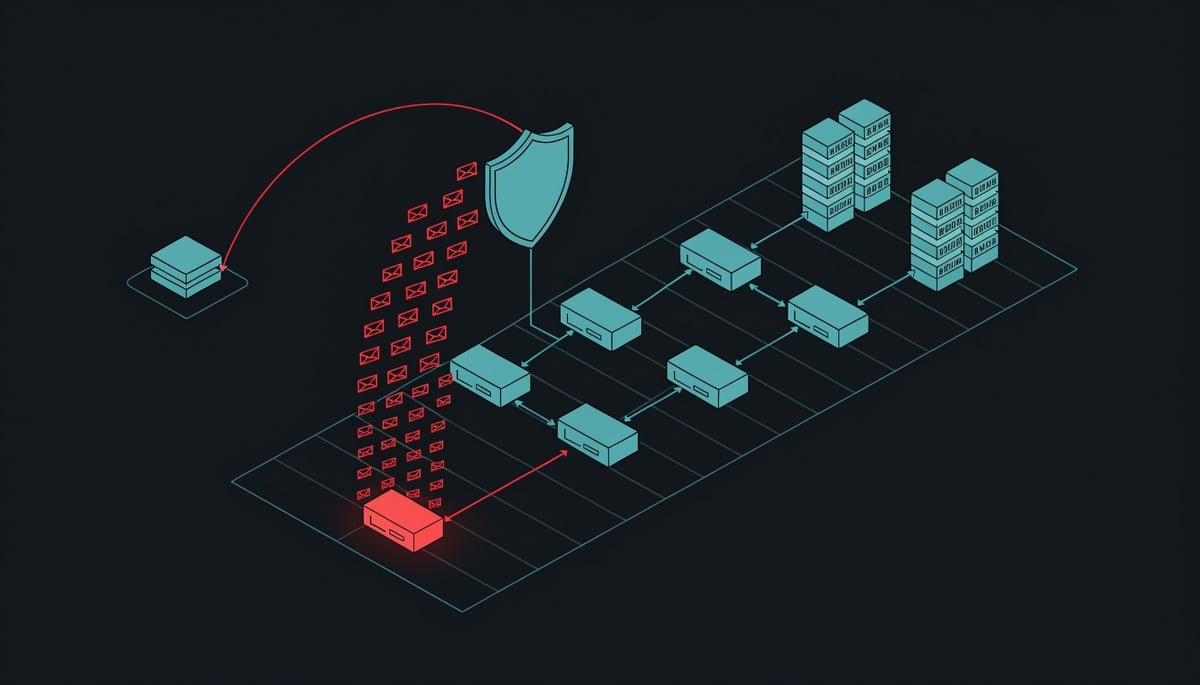
Many of the attacks start with an inbox problem. The target's email is flooded with hundreds of newsletter and subscription confirmations within minutes, a tactic called mail bombing. Moments later, a Teams message arrives from "IT support" offering to fix the problem the attacker just created. To an employee dealing with a sudden flood of junk mail, the offer looks timely and helpful.
This matters because Teams external access is turned on by default. Any user in another Microsoft 365 tenant (a tenant is a company's own Microsoft 365 environment) can find, chat with, and call your employees as long as both sides allow external access. The conversation happens inside a trusted collaboration app, so it never passes through the email filters your organization relies on to catch phishing.
Speed is the other concern. Arctic Wolf found that attackers reached payload execution in under 15 minutes from the moment a victim engaged with the first message. They often targeted multiple victims within short windows, which the researchers said suggests automation. That leaves your IT and security staff very little time to notice the contact and step in before an attacker has remote control of a workstation.
Any organization that accepts inbound Teams messages from external tenants is exposed to this approach. If your employees can receive chats from people outside the company, they can receive one of these fake support requests.
The Attack Chain: From Spam Flood to Quick Assist, AnyDesk and ScreenConnect
Every intrusion Arctic Wolf documented follows the same short sequence, with each stage starting almost as soon as the previous one ends. The timeline below tracks one victim from the first junk email to attacker code running on their workstation, all inside the window described earlier.
- Stage 1, the flood (first few minutes): The target's inbox fills with hundreds of newsletter and subscription confirmation emails within minutes. Arctic Wolf saw this mail bombing in a "significant number" of incidents. It maps to MITRE ATT&CK T1667 (Email Bombing).
- Stage 2, the contact (moments later): A Teams chat or call arrives from an external tenant. The sender poses as IT support and offers to fix the spam problem the attacker just created. This maps to T1566.003 (Phishing: Spearphishing via Service).
- Stage 3, the remote session: The fake technician talks the user into opening Quick Assist, which ships with Windows and needs no installation. This maps to T1219 (Remote Access Software).
- Stage 4, execution and spread: With hands-on-keyboard access, the attacker runs a PowerShell payload (T1059.001, Command and Scripting Interpreter: PowerShell). In some cases the user is told to run the PowerShell command and launch the downloaded file themselves (T1105, Ingress Tool Transfer, and T1204.002, User Execution: Malicious File). For access that outlasts the call, attackers install AnyDesk or ScreenConnect, then move laterally toward goals such as ransomware.
The external identity is built quickly and cheaply. Attackers create or acquire Microsoft 365 tenants and name them with words like support, IT, admin, network, or helpdesk, sometimes adding "365" to the end. Between 30 and 40 percent of cases used default onmicrosoft.com tenant domains, which require no verification and can be provisioned within minutes.
Display names add a second layer. Attackers used fake first names such as "IT Service Desk – Liam" so the message reads like it came from a specific person on your service desk. In a small number of cases, the tenant name included a real company name to look more credible.
Teams external access is turned on by default. Any user in another Microsoft 365 tenant can find, chat with, and call your employees as long as both tenants allow external access, so the attacker needs no prior foothold to start the conversation. Arctic Wolf also observed attackers hitting multiple victims within short windows, which points to automated tooling behind the outreach.
Legitimate RMM tools work well for attackers because they are ordinary IT software. Quick Assist is a built-in Windows component, and AnyDesk and ScreenConnect are commercial, signed products that many organizations already permit for real support work. A session opened through them generates the same network traffic and process activity an IT administrator would, so it does not stand out the way an unknown binary would. For the business, this means an attacker gets interactive control of an employee's machine through software that security tools and staff are used to seeing.
The observable traces line up with each stage. Indicators from the source material include:
- A sudden burst of subscription and newsletter confirmation emails to a single mailbox
- An inbound Teams chat or call from an external tenant with an IT, helpdesk, admin, or network themed name, often ending in 365
- Sender domains on
onmicrosoft.comrather than a verified corporate domain - Quick Assist launched by a non-IT user shortly after an external Teams contact
- A PowerShell command that downloads and runs a file, followed by an AnyDesk or ScreenConnect install the IT team did not request
Once a commercial RMM tool is in place, the attacker has persistent remote access that survives the end of the support call. That access is the staging point for lateral movement across the network and, in the incidents Arctic Wolf describes, for broader compromise including ransomware.
Why the 15-Minute Window Changes the Risk for Help Desks and Employees
The speed of this attack chain sets the terms for your response. Arctic Wolf found that a victim can go from a first reply in Teams to running attacker code inside the window described earlier, and the attackers often work through several targets in a short span, which the researchers read as a sign of automation. When the intrusion moves that fast, the question for your organization is whether any human review happens before the attacker is already inside.
Most detect-and-respond processes are built around queues. An employee notices something odd and files a ticket. A help desk technician triages it, and an analyst in your security operations center (SOC) escalates it if it looks serious. Each handoff can take longer than the entire attack. By the time a ticket reaches someone who can act, the attacker may already have an interactive session on the workstation, running under the employee's own account and permissions.
That foothold is where the larger costs begin. Arctic Wolf notes that remote access in these incidents can lead to PowerShell payload execution and lateral movement (moving from the first compromised machine to other systems on the network), in some cases for ransomware deployment. Black Basta, one of the groups known for this entry method, is associated with double-extortion ransomware. The operators copy data out of the network before they encrypt it, then demand payment both to restore systems and to keep the stolen files from being published.
For your business, double extortion means two separate problems arrive together. Encrypted systems bring operational downtime and recovery costs. Stolen data brings legal review and, if personal information about customers or employees was taken, possible regulatory notification obligations depending on where you operate. Restoring from backups addresses the first problem. The data that left your network stays out.
The attack also works because it uses something you have asked your employees to do. Staff are trained to cooperate with internal IT, follow instructions during a support session, and accept remote help when something breaks. In many incidents the attacker first creates the problem by flooding the inbox, then appears in Teams offering to fix it. An employee who accepts that help believes they are following correct procedure, and the resulting session looks like routine support activity.
This exposes a gap in many awareness programs. If your training centers on phishing email, your staff have learned to check links, attachments, and sender addresses in the mail client. A live chat or call from someone who appears to be on the service desk does not trigger those habits. The pressure of an inbox that has suddenly stopped working makes careful checking even less likely.
Organizations that depend on Teams for supplier, client, and contractor communication face a harder choice. External access is on by default, so any user in another Microsoft 365 tenant can find and message your employees as long as both tenants permit it. That openness is what makes cross-company collaboration easy, and it is also what allows a newly created tenant with a support-themed name to reach your staff. Narrowing who can contact your people reduces that exposure, but it requires knowing which partner domains your teams actually rely on and keeping that list current.
That makes external access a business policy question that involves leadership, operations, and the teams who work with outside parties every day. The decision weighs how much open collaboration your organization needs against how much unsolicited contact from unknown tenants it is willing to accept.
Locking Down Teams External Access and Remote Support Tools
The single most important action is to limit who outside your organization can reach your employees in Teams. Open Teams admin center > Users > External access, select Allow only specific external domains, and add only the partner domains you actively work with. A freshly provisioned attacker tenant will not appear on that list, so its chat requests never reach your staff.
Some organizations collaborate with too many outside parties for a strict allowlist. If that describes you, Arctic Wolf recommends a narrower set of restrictions that still removes most of the attacker's options:
- Block chat with unmanaged and Teams consumer accounts, and turn off the option that lets unmanaged users start conversations with your users.
- Block federation with trial-only tenants. Attackers favor free and trial tenants because they take almost no effort to set up.
- Enable "Allow my security team to manage blocked domains" so your security staff can push a block the moment they spot a malicious sender domain.
The same day, confirm that the External tag and external sender warnings appear on messages from other tenants. These labels are the visual cue your employees will be trained to check, so they need to be present before the training starts.
Next, deal with the remote access tools. Restrict Quick Assist to authorized IT roles through Intune or Group Policy, and remove it from machines where no one needs it. Then use application control (WDAC or AppLocker) to block AnyDesk, ScreenConnect, and any other remote monitoring and management (RMM) tool your IT team has not sanctioned. Once those tools are blocked, an employee who falls for the chat cannot hand over control of the machine, and the attacker loses the hands-on access the rest of the intrusion depends on.
Within the month, tell staff in writing that IT will never open a support request through an external Teams chat or call. Publish one verified support channel and a callback procedure, so an employee who gets an unexpected "help desk" message hangs up and calls a known internal number. Arctic Wolf also advises showing employees exactly how genuine IT support contacts them, teaching them to read the real sender domain, and pointing them to Microsoft's end-user reporting tool in Teams, which flags a suspicious message or external user in a couple of clicks.
Detection work belongs in the same window. Build rules that correlate these events for a single user within a short period:
- Creation of a new external Teams chat, visible in the Microsoft 365 audit log
- A Quick Assist session or the launch of any RMM binary on that user's workstation
- PowerShell running with
-EncodedCommandor making web download calls
Any one of these events alone is common. When all three show up together on one endpoint, it closely matches the sequence Arctic Wolf documented and warrants immediate containment of that host. Run the same query backward across your audit log and EDR telemetry to find any earlier sessions that went unnoticed.
For longer-term hardening, enforce PowerShell Constrained Language Mode on standard user endpoints and turn on script block logging. This limits what a pasted command can do and records what ran if one gets through. Standardize on a single approved remote support tool that requires MFA, which makes every other remote session stand out as unusual. Finally, run a tabletop exercise built on this exact scenario: a mail bomb, a Teams message from a tenant named like your service desk, and a request to start Quick Assist. Test whether your help desk, security team, and the affected employee each know their next step.
The Key Takeaway for Microsoft 365 Administrators
For Microsoft 365 administrators, this intrusion path runs almost entirely on features working as designed. Teams external access is on by default, so any user in another Microsoft 365 tenant can find, chat with, and call your employees as long as both tenants allow external access. Attackers, including groups such as Black Basta that have used this vector before, pair that default with remote support tools your staff already trust. The result is an intrusion that looks like a normal help desk conversation to the employee on the other end.
None of the activity Arctic Wolf documented depended on an exploit or an unpatched build. The attackers set up a tenant with a support-themed name, sometimes include a real company name in the sender's tenant, and count on an employee accepting an offer of help. Your exposure therefore comes down to two things you control: which outside tenants can start a conversation with your users, and whether your users know what a genuine IT contact looks like.
The single most important action is to review your Teams external access settings and limit them to the partner domains you actually collaborate with. Pair that change with one plain rule, communicated to every employee, stating that your IT team never contacts staff through external Teams chat. Once your staff know that rule, a support-themed account carrying the External tag becomes a message to report instead of one to answer.
If you are unsure how your tenant's external access is configured or which remote support tools are permitted on your endpoints, a security assessment of your Microsoft 365 collaboration settings can show where an outside chat could currently reach your employees.