When employees open their browsers expecting normal web browsing, they instead encounter a flood of unwanted advertisements, pop-ups, and redirected searches. This isn't just an annoyance—it's the visible symptom of a sophisticated malware operation that transforms infected computers into revenue-generating machines for cybercriminals. (Source: Isc)
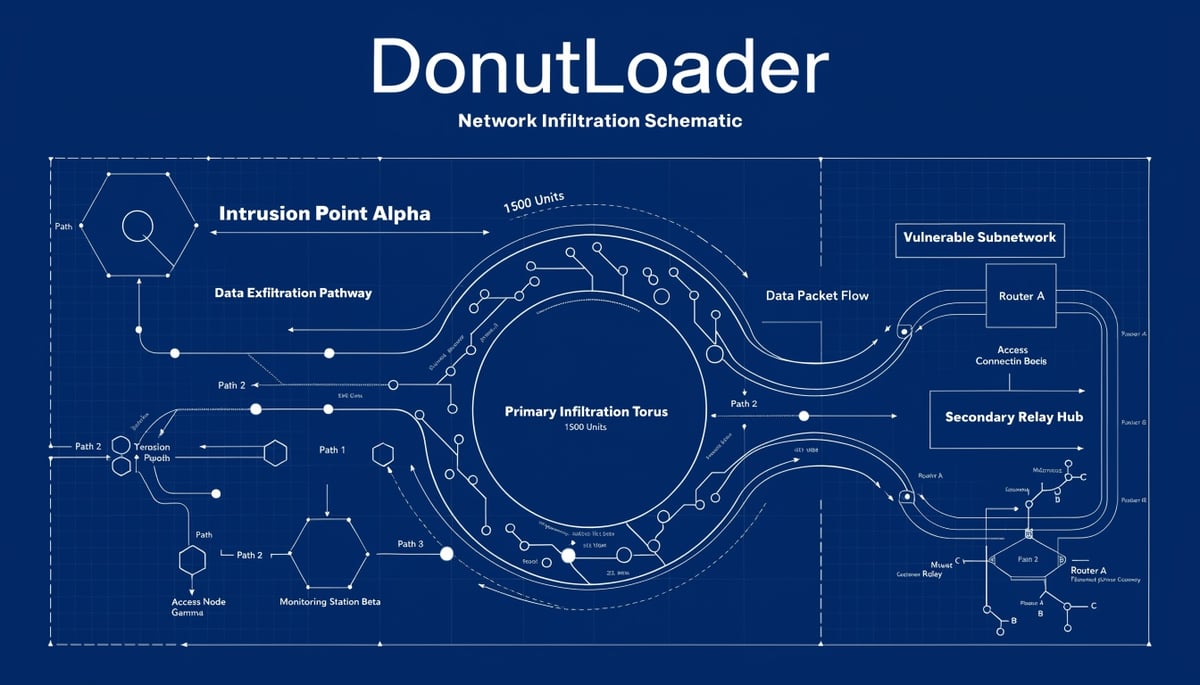
The script described in recent threat intelligence doesn't just display ads. It establishes persistent control over Windows systems through registry modifications and PowerShell execution, creating a foothold that survives reboots and basic security scans. Once established, this malware deploys DonutLoader, a known payload delivery mechanism that injects additional malicious code directly into browser processes.
For businesses, the impact extends far beyond productivity loss from ad-cluttered screens. Each infected machine becomes a data collection point, harvesting browsing habits, search queries, and potentially capturing credentials entered into fake login forms embedded within injected advertisements. Marketing teams face brand damage when customers associate their company with intrusive advertising experiences during legitimate business interactions.
The financial implications compound quickly. IT departments report spending 15-20 hours per week addressing user complaints about browser performance and unexpected advertisements. Help desk tickets spike as users report slow internet speeds—a direct result of the malware consuming bandwidth to download and display advertisements. Network administrators observe unusual traffic patterns as infected machines communicate with command-and-control servers to receive updated ad campaigns and exfiltrate collected data.
What makes this threat particularly insidious is its use of alternate data streams (ADS) manipulation. The malware actively removes the :Zone.Identifier stream from its files, eliminating the digital breadcrumbs that indicate a file was downloaded from the internet. This technique defeats common forensic practices where security teams scan for recently downloaded executables during incident response.
The registry persistence mechanism ensures the malware launches with every system startup through the HKCU\Software\Microsoft\Windows\CurrentVersion\Run key. Even if users manually close suspicious processes or clear their browser cache, the infection returns upon reboot. The script copies itself to %APPDATA%\Microsoft\Windows\Templates\dwm.cmd, masquerading as a legitimate Windows component to avoid detection during routine security audits.
Legal and compliance teams face additional challenges when infected systems process customer data. Ad-injection malware often violates data protection regulations by collecting user information without consent. Organizations handling payment card data risk PCI DSS compliance violations if infected systems interact with cardholder environments. Healthcare providers must consider HIPAA implications when patient-facing systems display unauthorized advertisements that could compromise the confidentiality of medical consultations.
The operational disruption extends to remote work scenarios where infected home computers access corporate resources through VPN connections. Each compromised endpoint becomes a potential entry point for lateral movement into corporate networks, as the DonutLoader payload can be configured to deploy additional malware families beyond ad-injection capabilities.
Key Insight: Each compromised endpoint becomes a potential entry point for lateral movement into corporate networks, as the DonutLoader payload can be configured to deploy additional malware families beyond ad-injection capabilities.
Browser Adware Infection Chain
The Attack Chain: From Delivery to Persistence Through PowerShell
The malicious script's attack chain reveals a calculated approach to system compromise that exploits Windows' own security mechanisms against itself. The infection begins when the script copies itself to %APPDATA%\Microsoft\Windows\Templates\dwm.cmd, a location specifically chosen for its persistence capabilities and low visibility to standard security scans.
What makes this attack particularly insidious is its manipulation of Windows Alternate Data Streams (ADS). The script executes a PowerShell command designed to remove the :Zone.Identifier ADS from its copied payload: powershell -w h -c "try{Remove-Item -Path '%APPDATA%\Microsoft\Windows\Templates\dwm.cmd:Zone.Identifier' -Force -ErrorAction SilentlyContinue}catch{}". This stream normally marks files downloaded from the internet with zone identifiers (0 for local files, 3 for internet downloads, 4 for restricted sites), helping security tools identify potentially dangerous external files.
The attacker's PowerShell implementation demonstrates sophisticated evasion techniques. The -w h parameter hides the PowerShell window entirely, preventing users from noticing the execution. The try-catch block ensures silent failure if the ADS doesn't exist, avoiding any error messages that might trigger logging or alerts.
Registry persistence gets established through a Run key modification: reg add "HKCU\Software\Microsoft\Windows\CurrentVersion\Run" /v csgh4Pbzclmp /t REG_SZ /d "\"%APPDATA%\Microsoft\Windows\Templates\dwm.cmd\"". This ensures the malicious script executes every time Windows starts, using a randomly generated registry value name (csgh4Pbzclmp) that appears legitimate to automated scanning tools.
The script's self-replication mechanism preserves its functionality across system events. By using copy /Y "%~f0", it maintains the full path reference to itself, ensuring the copied version retains all original capabilities. Contrary to common assumptions about Windows file operations, the copy command preserves ADS attributes—a fact the attacker clearly understands and actively counters.
Once persistence is secured, the script deploys its true payload through another PowerShell invocation that drops DonutLoader onto the system. DonutLoader represents a critical escalation point in the attack chain. This shellcode generation framework converts .NET assemblies, PE files, and other payloads into position-independent shellcode that can be injected directly into running processes.
The choice of DonutLoader reveals the attacker's ultimate objective: process injection without touching disk. After the initial script establishes its foothold and cleans its tracks by removing the Zone.Identifier, DonutLoader can inject malicious code into legitimate Windows processes. This technique bypasses application whitelisting, evades traditional antivirus signatures, and makes forensic analysis significantly more challenging.
The PowerShell-to-DonutLoader pipeline creates a nearly invisible attack vector. Security tools see legitimate Windows processes running normally, while the injected shellcode operates within their memory space. The initial script's careful ADS manipulation ensures that even if defenders discover the persistence mechanism, the file appears to be locally created rather than downloaded—reducing suspicion during incident response.
This multi-stage approach demonstrates why PowerShell remains a preferred attack vector. Its deep Windows integration, powerful scripting capabilities, and ability to execute directly in memory make it ideal for deploying sophisticated payloads like DonutLoader while maintaining operational security throughout the infection chain.
Malicious Script Attack Chain
Detection and Hunting: Finding DonutLoader Before It Injects
Security teams hunting for this registry-based persistence mechanism need to focus on three distinct behavioral patterns that reveal infection before DonutLoader deploys. The script's reliance on specific Windows locations and PowerShell execution creates detectable artifacts that standard endpoint detection tools can identify.
Immediate detection priorities should center on registry monitoring. Configure your EDR to alert on any new Run key creation under HKCU\Software\Microsoft\Windows\CurrentVersion\Run that points to files in %APPDATA%\Microsoft\Windows\Templates\. This directory combination represents an unusual persistence pattern—legitimate Windows processes rarely establish autostart entries from the Templates folder.
PowerShell logging becomes your most valuable detection asset when configured properly. Enable ScriptBlockLogging and look for command patterns containing Remove-Item operations targeting files with the :Zone.Identifier suffix. The specific pattern -Path '%APPDATA%\Microsoft\Windows\Templates\dwm.cmd:Zone.Identifier' should trigger immediate investigation. Most legitimate scripts don't manipulate alternate data streams, especially not immediately after file copy operations.
Process creation monitoring reveals the attack's command structure. Watch for cmd.exe spawning powershell.exe with the parameters -w h -c, which indicates hidden window execution combined with command-line input. This combination frequently appears in malicious scripts attempting to avoid user detection while performing system modifications.
For threat hunting in potentially compromised environments, query your SIEM for file creation events in %APPDATA%\Microsoft\Windows\Templates\ followed within seconds by PowerShell execution. The temporal proximity between these events—file copy immediately followed by ADS removal—creates a distinctive pattern rarely seen in legitimate operations.
Registry persistence combined with cmd file execution presents another hunting opportunity. Search for registry Run keys where the value contains both .cmd file extensions and the Templates directory path. Legitimate Windows startup items typically use executables or shortcuts, not command scripts from user profile directories.
Network defenders should implement file integrity monitoring on the Templates directory. Any new .cmd, .bat, or .ps1 files appearing in this location warrant investigation, particularly if they lack proper digital signatures or appear alongside registry modifications.
The script's attempt to appear legitimate by removing zone identifiers actually creates a detection opportunity. Query your endpoint telemetry for processes attempting to access or modify files with :Zone.Identifier streams. While some legitimate applications interact with these streams, the combination of Templates directory location, cmd file type, and ADS manipulation forms a highly suspicious pattern.
Memory analysis provides the final detection layer before DonutLoader activation. Monitor for cmd.exe processes that maintain handles to files in Templates while simultaneously spawning PowerShell child processes. This parent-child relationship, combined with the specific directory pattern, indicates active script execution rather than dormant persistence.
Deploy these detection rules immediately across your environment, prioritizing systems with external email access or web browsing capabilities where initial infection vectors typically originate. The window between initial persistence establishment and DonutLoader deployment may be brief, making rapid detection essential for preventing browser hijacking and subsequent ad injection activities.
Containment and Remediation: Stopping the Injection and Removing Persistence
When DonutLoader begins injecting advertisements into browser sessions, immediate isolation prevents lateral movement while preserving forensic evidence. Disconnect affected workstations from network segments but maintain local access for remediation teams—pulling the ethernet cable achieves faster isolation than disabling network adapters through Windows settings.
Kill active injection processes before they spawn additional payloads. Open Task Manager as administrator and terminate any dwm.cmd processes running from unusual locations. The legitimate Desktop Window Manager runs as dwm.exe from System32—any CMD variant indicates compromise. Check for PowerShell processes spawned by cmd.exe rather than Windows Explorer or legitimate management tools.
Your immediate containment priority centers on breaking the execution chain. Open Registry Editor and navigate to HKCU\Software\Microsoft\Windows\CurrentVersion\Run. Document any entries pointing to CMD files before deletion—particularly those with random alphanumeric names like "csgh4Pbzclmp" referenced in the threat intelligence. Export the entire Run key for forensic analysis before making changes.
Remove the persistence mechanism by deleting both the registry entry and the malicious file it references. Execute these commands in an elevated command prompt:
reg delete "HKCU\Software\Microsoft\Windows\CurrentVersion\Run" /v csgh4Pbzclmp /fdel "%APPDATA%\Microsoft\Windows\Templates\dwm.cmd" /fattrib -h -s "%APPDATA%\Microsoft\Windows\Templates\*"to reveal any hidden variants
The script's attempt to manipulate Alternate Data Streams requires specific remediation. Search for files missing Zone.Identifier markers in suspicious locations using PowerShell: Get-ChildItem -Path "$env:APPDATA\Microsoft\Windows\Templates" -File | Where-Object {-not (Get-Content -Path "$_.FullName:Zone.Identifier" -ErrorAction SilentlyContinue)}. These files warrant immediate quarantine as they've been deliberately stripped of security metadata.
Browser cleanup requires resetting all installed extensions and clearing cached credentials. In Chrome, navigate to chrome://extensions and remove any unfamiliar additions. Reset browser settings through chrome://settings/reset to eliminate injected configurations. Edge users should perform similar actions through edge://extensions and reset via Settings > Reset settings.
Implement application control policies to prevent future script execution from user-writable directories. Configure AppLocker rules blocking CMD and PowerShell execution from %APPDATA% paths. Create default rules allowing legitimate Windows binaries, then add explicit deny rules for Templates folders: %APPDATA%\Microsoft\Windows\Templates\*.
Long-term prevention requires PowerShell constrained language mode for standard users. Deploy this through Group Policy by setting ExecutionPolicy to AllSigned and enabling system-wide transcription logging. Configure Windows Defender Application Control policies that restrict unsigned script execution while maintaining operational flexibility for approved automation tools.
Schedule weekly scans for files lacking proper Zone.Identifier streams in user profile directories. This proactive hunting identifies attempts to bypass Mark-of-the-Web protections before persistence mechanisms activate. Document all remediation actions in your incident tracking system, noting specific registry keys, file paths, and PowerShell commands executed during cleanup.
Defensive Posture: Preventing PowerShell-Based Injection Attacks
Your organization's PowerShell configuration represents the difference between a minor security event and complete system compromise. The script's ability to execute hidden PowerShell commands with -w h (window hidden) flags demonstrates how default PowerShell settings enable attackers to operate invisibly within your environment.
Start by inventorying which PowerShell versions exist across your infrastructure. Windows systems often retain PowerShell 2.0 alongside newer versions, creating bypass opportunities when you restrict only current versions. The malicious script leverages standard PowerShell.exe without version specification, meaning it will execute on whatever version responds first.
Constrained Language Mode blocks the exact capabilities this attack requires. When enabled through Group Policy, it prevents scripts from accessing .NET types, COM objects, and Windows APIs that enable file manipulation and process injection. The script's attempt to remove Alternate Data Streams requires unrestricted access to filesystem methods—precisely what Constrained Language Mode denies.
Configure AppLocker or Windows Defender Application Control to enforce PowerShell script signing. Unsigned scripts like the one copying itself to %APPDATA%\Microsoft\Windows\Templates\ fail execution when your environment requires valid Authenticode signatures. This control specifically breaks the attack chain at the PowerShell execution phase, before any payload deployment occurs.
User context restrictions provide your most implementable defense with minimal operational disruption. Standard users don't need PowerShell for daily tasks—restrict execution to administrative accounts and specific service accounts. Create separate OUs in Active Directory: one for standard workstations with PowerShell disabled entirely, another for IT systems with signed script requirements.
The script's reliance on ErrorAction SilentlyContinue reveals another defensive opportunity. Configure PowerShell transcription logging to capture all commands regardless of error suppression attempts. Even when attackers hide windows and suppress errors, transcription logs record their actual commands to protected directories they cannot modify.
Execution Policy alone won't stop this attack—the script bypasses it through direct PowerShell.exe invocation. Instead, implement Just Enough Administration (JEA) endpoints that limit PowerShell capabilities to specific approved cmdlets. When users need PowerShell for legitimate tasks, they connect to JEA endpoints with predefined command sets rather than unrestricted shells.
Your immediate priority: disable PowerShell 2.0 across all systems through Disable-WindowsOptionalFeature -Online -FeatureName MicrosoftWindowsPowerShell2. This older version lacks security logging present in version 5.0+, making it attractive for evasion. Next, deploy Constrained Language Mode to pilot groups before organization-wide rollout—test business applications for compatibility first.
Long-term architectural changes require planning but deliver lasting protection. Implement PowerShell remoting with credential delegation disabled, forcing all administrative PowerShell usage through jump servers with enhanced monitoring. This centralization transforms PowerShell from a distributed attack surface into a controlled administrative channel where anomalies become immediately visible.